Chart Trader · Workspace

Trade from the chart. Literally.

Your chart is now your order pad — drag to place an order, drag to modify it, close with one tap, all without ever looking away from price.

Set up free account in 5 min
One of seven purpose-built workspaces on Navia Pro Web
Drag
To place or modify an order
1-tap
Close a position from its line
3 panes
Underlying + Call + Put, live
Live
Total P&L in the top bar
The chart is the order pad

Four things you do without leaving the chart

No ticket, no second window, no looking away from price. Tap any point to see it.

1Drag "New Order" to any price on the chart to place it
2Drag a working order's line to re-price it instantly
3Close or reverse a position from its own line, with live P&L
4Underlying, Call and Put side by side — ATM resolved automatically
1Drag to place an order
NIFTY 24,812 5m
✥ New Order · 24,780
Drag to any price → order ticket pre-fills
2Drag to modify it
NIFTY 24,812 5m
BUY 1 @ 24,860  ✕
↕ drag to re-price
Drag the line — modify sent instantly, no ticket
3Close or reverse in one tap
Open position · on the chart
LONG 1 · +₹2,340  ✕ ⇅
✕ closes it · ⇅ reverses it · P&L updates live
4Three panes, one glance
Underlying + Call + Put · synced
NIFTY 24,812
24800 CE 96.25
24800 PE 88.40
ATM strikes resolved automatically — change the underlying and all three panes follow.

The full workspace — watchlist, underlying, Call and Put on one screen

Multi-watchlist rail on the left, and the U + C + P layout on the right: the underlying future charted beside its Call and Put, all on the same interval with a synced crosshair. 1-Tap ON, BUY @ MKT and SELL @ MKT sit in the header, a draggable New Order handle is live on the Call pane, and DEPTH / CHAIN / HEATMAP are a tab away.
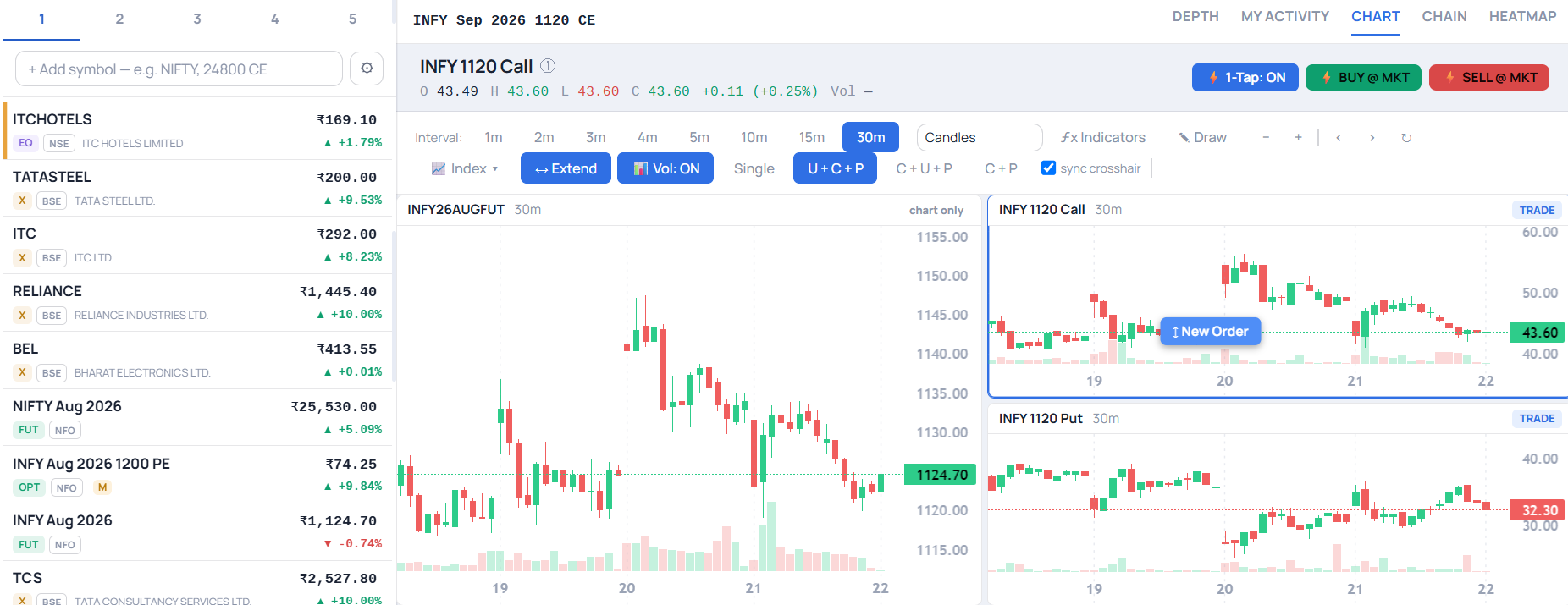
Navia Chart Trader Workspace — watchlist rail beside a synced underlying, Call and Put chart layout with a draggable New Order handle and 1-Tap trading controls

Most platforms split your attention — a chart to analyse on one side, an order ticket to execute on the other. Chart Trader closes that gap. One idea runs through the whole workspace: the chart is where the decision happens, so the chart is where the trade should happen too.

What makes it different

Not a chart. A trading surface.

Every design decision here removes a step between spotting a level and being in the trade.

Place an order at the price you see

Drag the "New Order" handle to any level. A live preview shows price and side as you move; drop it, choose Buy or Sell, and the order goes in — right where you were looking.

Drag-to-modify order lines

Every working order is a line on the chart at its price. Grab it and drag to re-price — no reopening a ticket, no re-typing.

Cancel without leaving the chart

Done with an order? Cancel it straight from its line — no round-trip to the order book.

Live position lines, one-tap close

Open positions are drawn on the chart with their live P&L in context against price — square off right from the line when you're ready.

Smart about order types

Drop a buy above the market — or a sell below it — and it's placed as a stop order, not one that fires instantly. A trigger price behaves like a trigger.

Always in sync

Order and position lines refresh continuously and re-anchor as price moves — what's on the chart is always what's live in the market.

Built around three ideas

See more, react faster, stay in control

Theme 1

See the whole options picture at once

Options never move in isolation. Chart Trader's multi-pane layouts put the pieces that matter side by side on one screen — load an index, future or option and it builds a view of the underlying alongside its at-the-money Call and Put, with the ATM strikes resolved automatically from the live chain.

Underlying + Call + Put Call + Underlying + Put Call + Put 15m · 5m · 1m grid 30m · 10m · 2m grid Synced crosshair across panes
Theme 2

Your P&L, always on screen

Good chart decisions need a constant sense of where you stand. Keeping that number in front of you the whole session makes it easier to stick to your plan, protect your gains, and step away at the right moment.

Live Total P&L, in the top bar

Realised + unrealised, across every open position, updating in real time — one trusted number, always in view.

Theme 3

Built for fast intraday decisions

Every tool here earns its place on the screen — and anything that doesn't gets out of the way.

Candle countdown timer Intraday timeframes up front Volume histogram toggle Drawing tools Zoom, pan, reset Extend for a bigger canvas Jump to any F&O index Fast, precise charting engine
How it works

Four steps, one screen

1

Switch to Chart Trader

One click from the workspace rail — the chart becomes your primary surface.

2

Pick your layout

Underlying + Call + Put, a focused Call/Put pair, or a multi-timeframe grid — whichever fits the trade.

3

Drag to place, drag to modify

Drop "New Order" at your level; drag any working order's line to re-price it.

4

Close from the line, watch your P&L

Square off a position with one tap; your Total P&L stays live in the top bar throughout.

Frequently asked questions

What is the Chart Trader workspace?

A dedicated Navia workspace where you analyse and trade on the same screen — placing and modifying orders directly on the chart, with multi-pane options views and a live P&L badge.

Who is Chart Trader for?

Active intraday and F&O traders who make decisions off the chart and want to act on their levels instantly, without switching to a separate order ticket.

How do I place, modify or cancel an order?

Drag the "New Order" handle to a price to place one; drag an existing order's line to re-price it; and cancel an order — or close a position — right from its line on the chart. No order ticket to reopen.

Can I see an option next to its underlying?

Yes. The multi-pane layouts show the underlying together with its at-the-money Call and Put, resolved automatically from the live option chain.

Where do I see my P&L?

Your total realised + unrealised P&L is always in the top bar and updates live as the market moves.

What happens if I drop a buy order above the market?

Chart Trader is smart about order types — a buy dropped above the market (or a sell dropped below it) is placed as a stop order instead of one that would fire instantly, so a price you meant as a trigger behaves like one.

Do I need a separate app or login for Chart Trader?

No — Chart Trader is one of the workspaces inside your Navia trading platform. Switch to it anytime.

Stop switching between analysing and acting

Chart Trader puts your analysis and your execution on the same surface — so the moment you see the trade, you can take it.